
You can edit the positions of a portfolio at any time. To do this, follow these steps:
-

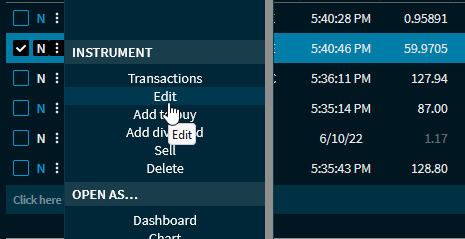
-
Edit the data in the "Edit instrument" dialogue window that appears.
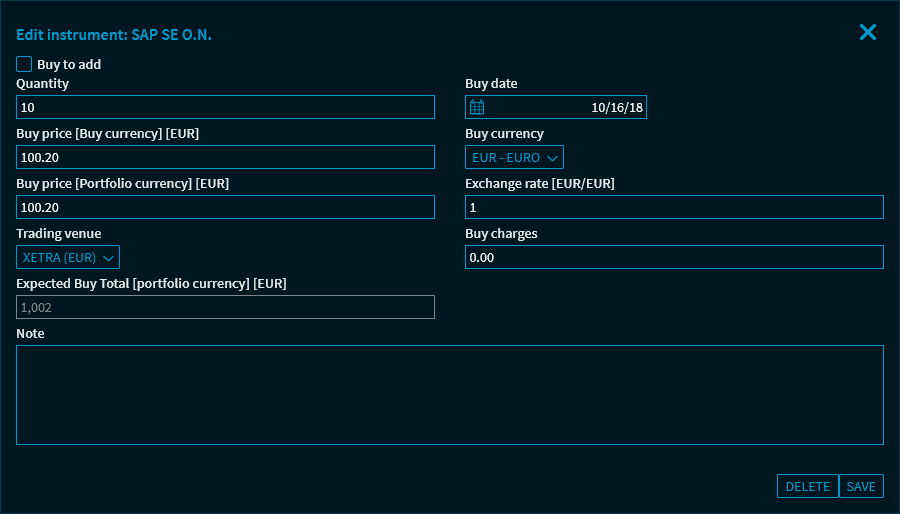
The fields correspond to those for recording positions. For more information, see Add position to portfolio. -
Click the "Save" button to save the changes.
The position is changed accordingly.
The buttons in the "Edit instrument" dialogue window:
|
Button |
Description |
|---|---|
|
Delete |
Click this button to delete the selected positions from the portfolio. a security prompt appears before the final deletion of the position. |
|
Save |
Click this button to save the input and close the dialogue window. |
From the dialogue window for editing a position, you can go directly to the dialogue window for Buy to add this position. To do this, select the "Buy to add" checkbox.