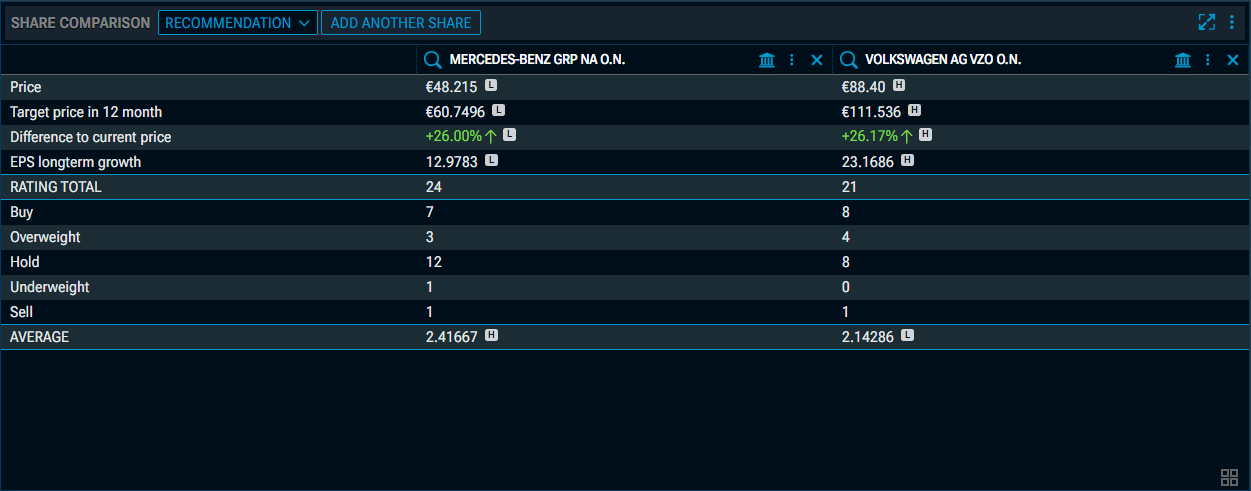
An optimised comparison widget is available for the “Shares” asset class. Its layout and functionality are similar to those of the “Fund Comparison” widget, for example.
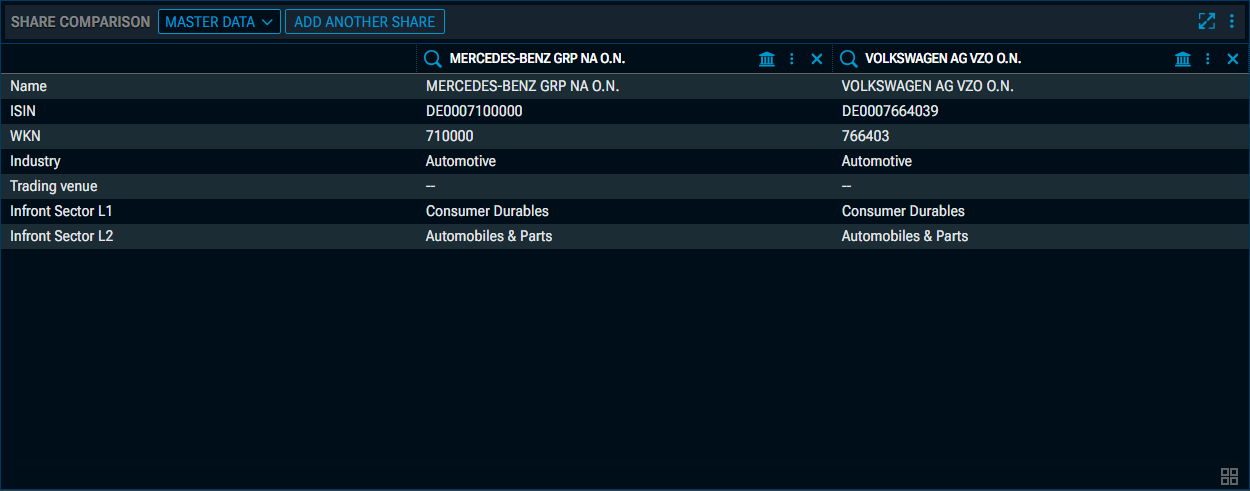
First, use the two drop-down lists (or drag and drop from other widgets) to select the first two shares you wish to compare. Clicking on the selection buttons will bring up the security search.
-
You can use the “Add another share” button to display up to 10 shares in total.
-
You can replace the selected shares using the selection lists; to remove a share, click the “Remove” icon to the right of the selection buttons.
-
In addition to the share selection lists, you can use the relevant trading venue selection list for each share to choose the desired trading venue and currency for the share comparison.
-
For each share in the widget, the usual menu is available in the header, allowing you to quickly open the share in another widget or print it.
The “Share Comparison” widget also supports widget grouping. In this case, the share in the first column of the widget is always taken into account.
Share Comparison – "Master data" view
In the “Master Data” view, you can compare the shares according to the following criteria:
-
Name
-
ISIN
-
WKN
-
Industry
-
Trading venue
-
Infront sector L1
-
Infront sector L2
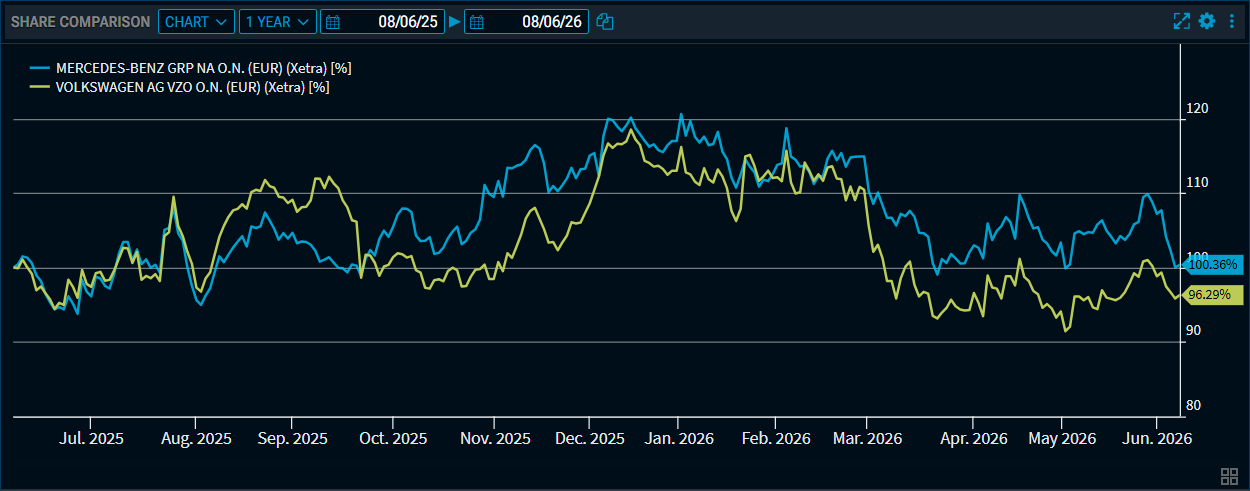
Share Comparison – "Chart" view
Select the “Chart” view from the drop-down list at the top, and the selected shares will be displayed as time series on a chart:
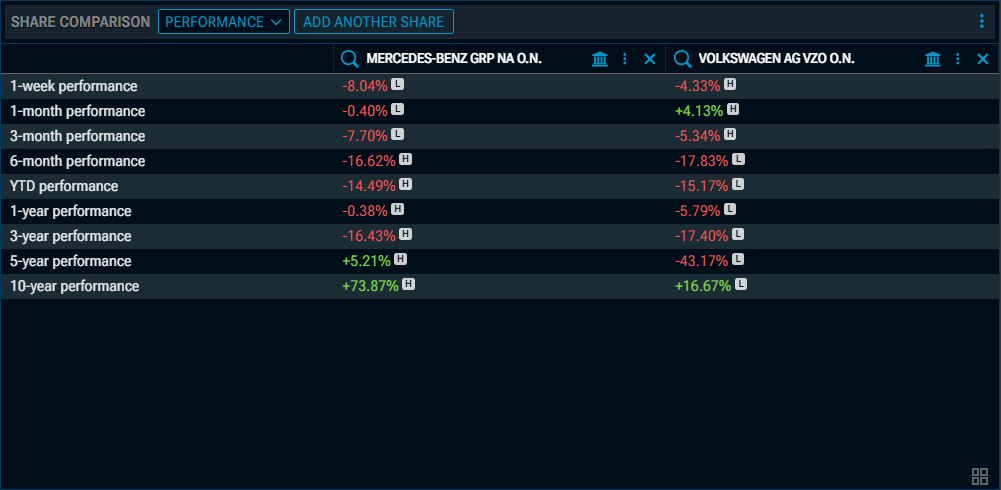
Share Comparison – "Performance" view
Select the “Performance” view from the drop-down list at the top, and the selected shares are compared on the basis of performance indicators.
Share Comparison – "Recommendation history" view
Select the “Recommendation history” view from the drop-down list at the top, and a graph showing the history of recommendations for the selected shares will be displayed:
Share Comparison – "Recommendation" view
Select the “Recommendation” view from the drop-down list at the top, and the selected shares will be compared in terms of recommendations: