

Use the "Widget settings" icon to open the "Settings" dialogue window for configuring the widget.
Alternatively, you can use the "Settings" command in the widget menu.
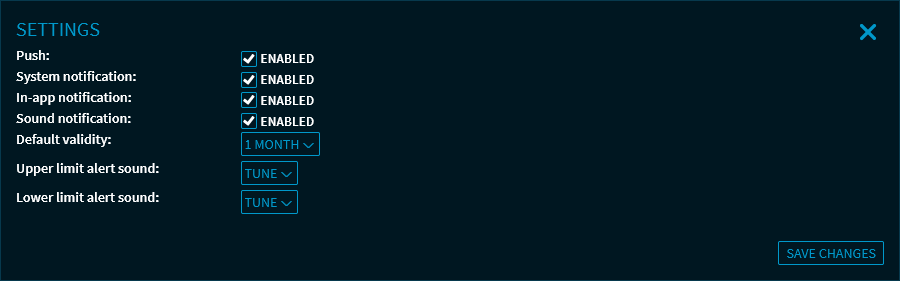
Here, you can make the following settings:
|
Field |
Description |
|---|---|
|
Push |
Here, you can use the "Enabled" checkbox to enable or disable the push data feed. |
|
System notification |
Select this checkbox to receive system (desktop) notifications when a price or news alert is triggered. For this function, confirm the corresponding requests of your browser to allow notifications. In addition, you can specify if and what notifications you want to receive for each alert. For more information about the global notification settings, see Settings and profile. For example, use this setting to receive system notifications even if your browser window is minimised. 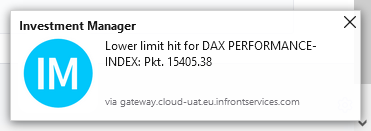
|
|
In-app notification |
Select this checkbox to receive notifications in the browser when an alert is triggered. In addition, you can specify if and what notifications you want to receive for each price alert. For more information about the global notification settings, see Settings and profile. |
|
Sound notification |
Select this checkbox to receive sound when an alert is triggered. In the settings below, select the corresponding sound. In addition, you can specify if and what notifications you want to receive for each price alert. |
|
Default validity |
Specify the default validity period of your alerts. The default period is taken as initial value in the "Valid to" field when you create alerts. The following periods are available:
|
|
Upper limit
|
From the drop-down list, select the notification sound to be played when the upper limit is exceeded. Various sounds are available: |
|
Lower limit
|
From the drop-down list, select the notification sound to be played when the upper limit is exceeded. Various sounds are available: |