

Use the "Widget settings" icon to open the "Settings" dialogue window for configuring the widget.
Alternatively, you can use the "Settings" command in the widget menu.
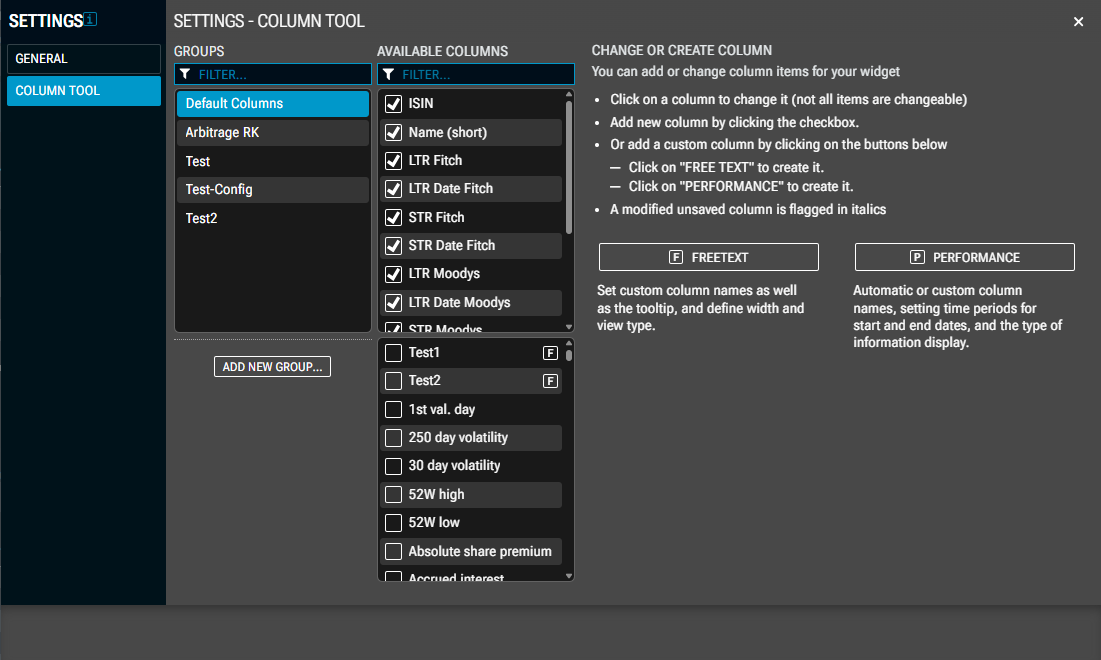
In the "Watchlist settings" dialogue window, you can first select the area on the left side for which you want to configure your settings:
Note that not all settings described below are possible for globally available watchlists, for example, the configuration of free-text columns.
"General" area
In the "General" area, you can make the following settings:
|
Field |
Description |
|---|---|
|
Push |
Here, you can use the "enabled" checkbox to enable or disable the push data feed. |
|
Sort interval (only for table views) |
If necessary, select the time interval for updating the table sorting in the widget here. The following periods are available:
|
|
Clear filter on list change |
Deselect this default setting to keep filter conditions when switching to another list. |
"Column Tool" area
Use the Column Tool to customise the columns in the “Watchlist” widget.
If necessary, please refer to the section on the Column Tool.
Settings for "Chart Gallery" view
In the "Chart Gallery" area, you can make the following settings:
|
Field |
Description |
|---|---|
|
Push |
Here, you can use the "enabled" checkbox to enable or disable the push data feed. |
|
Show details |
Select this checkbox to display more details in the individual charts of the Chart Gallery. The following data is shown:
|
|
Start date |
Use the integrated calendar to specify the start date. |
|
End date |
Use the integrated calendar to specify the corresponding end date. |
Settings for additional views of the watchlist
You have various setting options depending on the view selected (for example, "Correlation Matrix") in the widget. If, for example, you have opened a watchlist in the "Gainers & Losers" view, you can also define the number of securities to be displayed here.