In the Column Tool you configure the columns to be displayed in the corresponding widget. All fields are available directly in the widget settings via the Column Tool and no longer need to be added via drag-and-drop from the “All Fields” widget. The performance and free-text columns are also available in the same view.
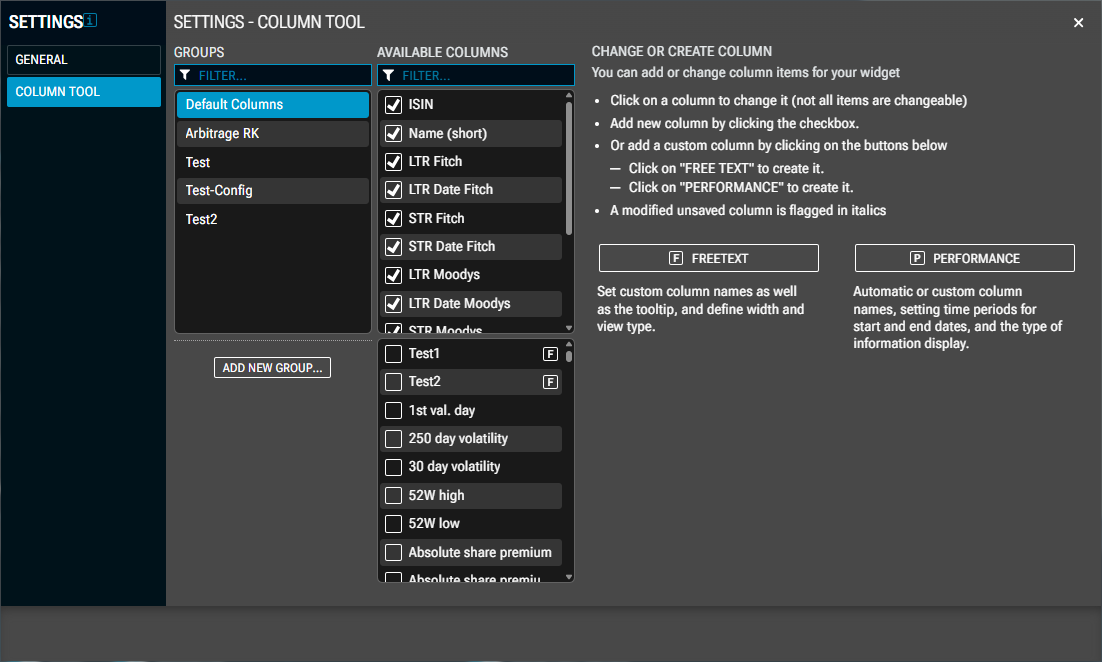
In the column tool, you can add, hide or edit columns.
-
Click on a column to edit it. Please note that not all columns can be edited.
-
Add a new column by ticking the relevant tick box in the list of columns.
-
Alternatively, add a custom column by clicking on the buttons below.
-
Click the “Performance” button to create this column.
-
Click the “Freetext” button to create this column (for watchlists).
-
-
A column that has been edited but not yet saved is highlighted in italics.
-
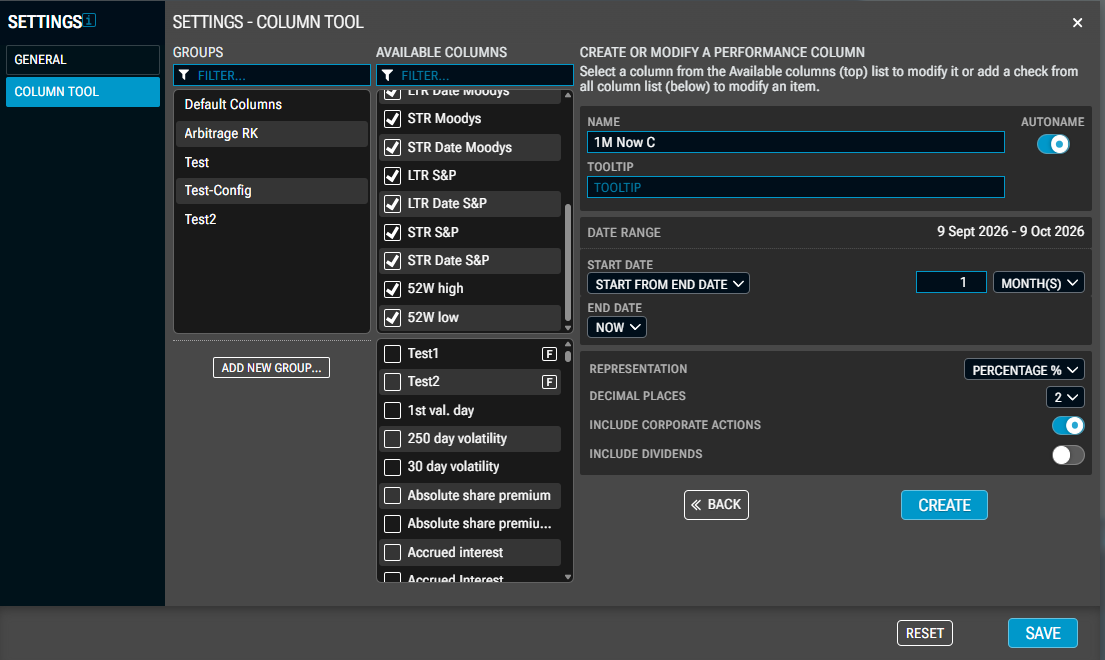
Automatic or custom column names, setting time periods for start and end dates, and the way information is displayed.
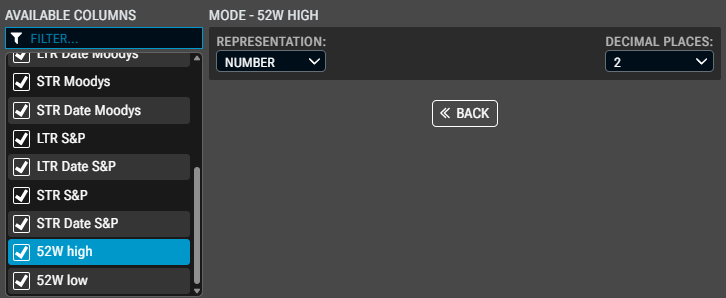
Edit columns:
Creating performance columns:
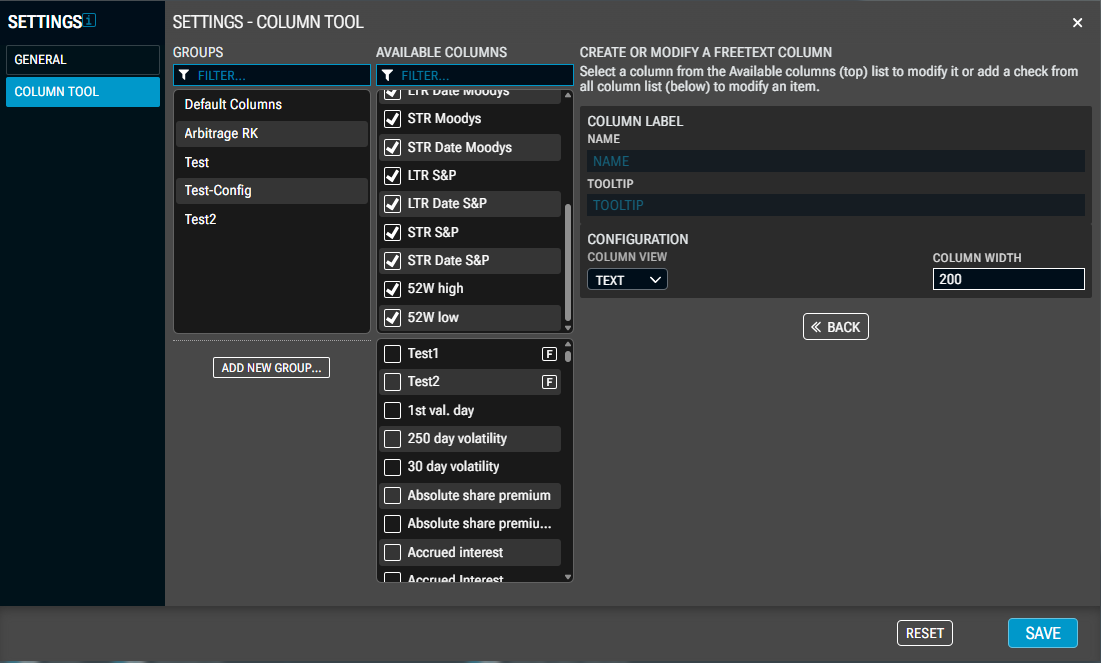
Creating freetext columns in watchlists: