
The elements and functions described here can be found in many standard widgets.
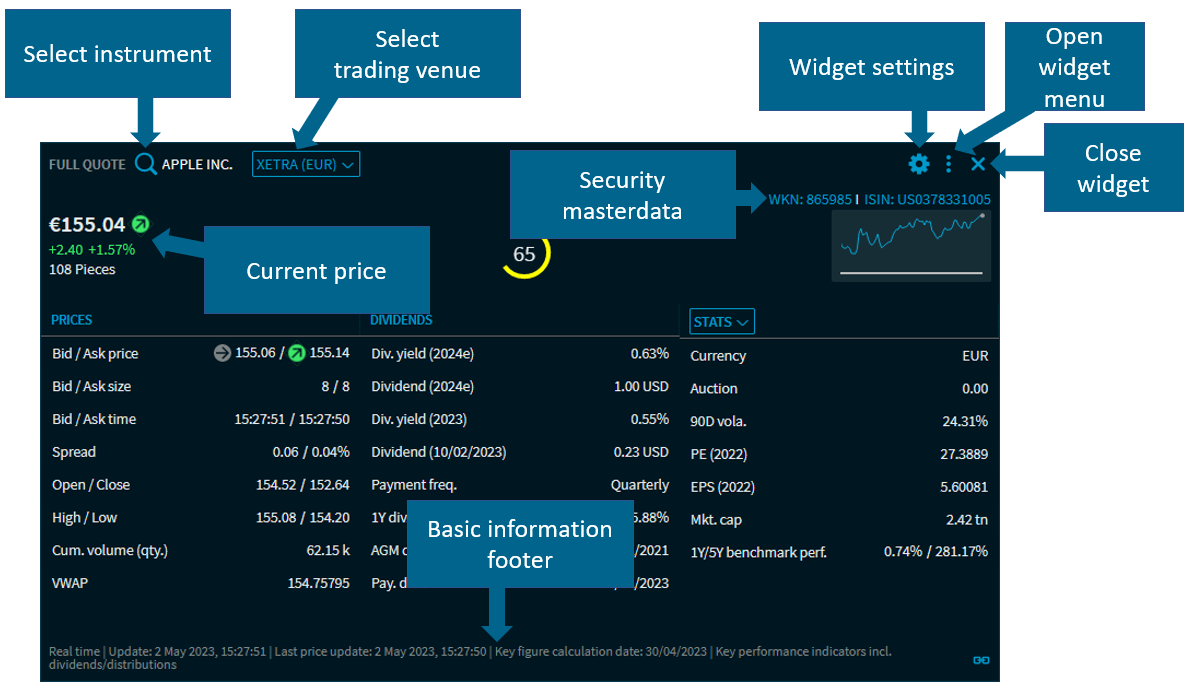
The standard elements in detail:
|
Element |
Description |
|---|---|
|
Select security |
The selection at the top left of the widget opens the quick search for security selection. In addition to using the securities search field, you can also select from the previously selected instruments below the search field. |
|
Security name
|
Pointing to the security name displays a "drag & drop" symbol. Hold down the left mouse button to drag the security into other widgets. For more information, see /wiki/spaces/imc/pages/90213027. |
|
Select trading venue, security type, calculation type... |
In addition to the security selection, there are usually one or more further drop-down lists. In many widgets, you can select the trading venue for a security, change the calculation method or select the security type. The menu allows you to configure the content of the widget. |
|
Current price dates |
Here you find the current price information, for example, the last traded price of the security with the currency at the trading venue selected. You see the absolute and percentage change to the close price of the previous day. The direction and colour of the arrow next to the price illustrate the current price development. |
|
Security master data |
in the upper right corner of the widget selection, you will find further information on the currently selected security, for example in a "Full Quote" widget:
Clicking the ISIN or WKN copies them directly to the Clipboard. Pointing to the "ISIN "or "WKN displays an info window showing further details. Clicking the info window keeps it in the foreground: 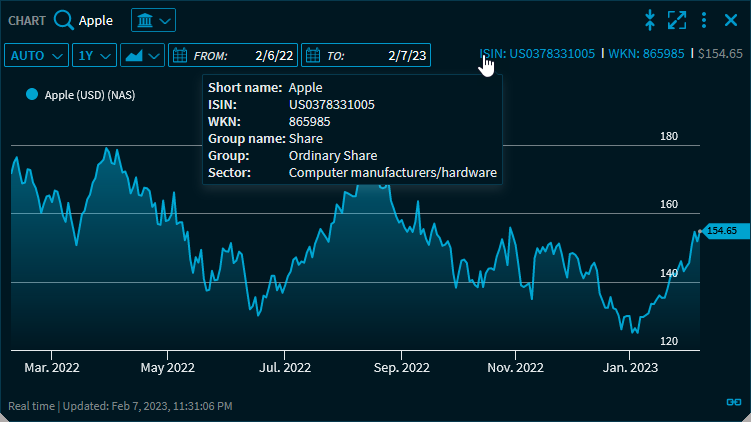
|
|
"Show/hide widget header" icon
|
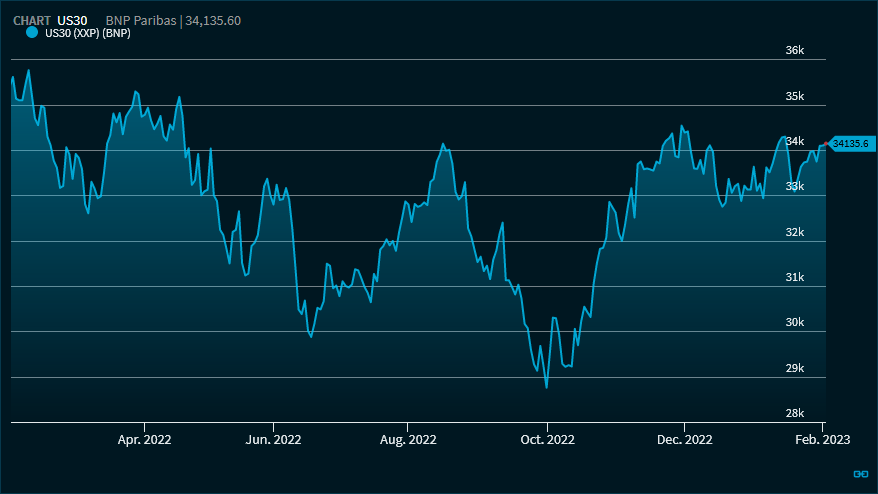
[Only for selected widgets, for example, "/wiki/spaces/imc/pages/89214304", "/wiki/spaces/imc/pages/89411515" or "/wiki/spaces/imc/pages/89280023"] Expands or collapsed the header of the widget. 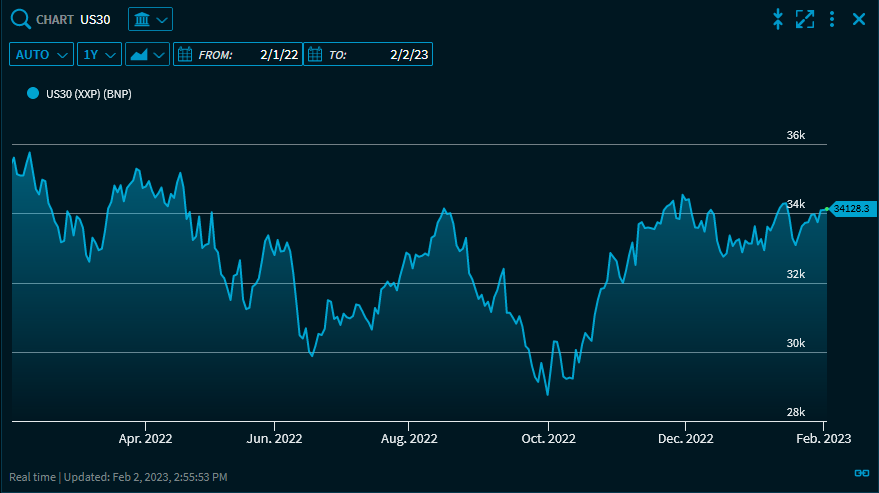
|
|
"Maximise widget" icon
|
Maximises the widget. The widget then takes up the entire dashboard. Click the icon again to restore the original dashboard view. |
|
"Widget settings" icon

|
Clicking this icon opens the widget settings. If the widget is very small, this icon disappears. In these cases, however, the Widget structure available to you as an alternative at any time. |
|
Menu icon
|
Click this icon to open the menu with the standard commands, for example, the settings. For more information, see /wiki/spaces/imc/pages/89442839. |
|
"Close" icon 
|
Click this icon to remove the widget. For more information, see /wiki/spaces/imc/pages/90312175. |
|
Basic information in the footer |
In the footer of the widgets, you find further information:
|
|
Page navigation
|
If a table in a widget contains many rows, then the rows are split across several pages. Use the controls below the list to go through the pages. |



Up to 5 decimal places are displayed for the price data in the widgets and up to 6 decimal places for exchange rates.