

Alternatively, you can use the "Settings" command in the widget menu.
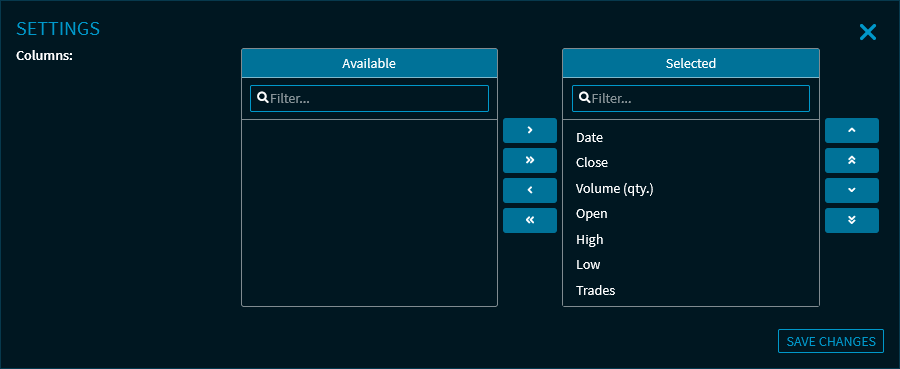
Here you can show or hide the columns of the tables in the "Time & Sales" widget. For more information, see Show and hide widget columns via the settings.
For more information about the widget settings, see Commands in the widget menu.
The available columns in the settings dialogue window depend on the currently selected view in the "Time & Sales" widget.
In the image example above, you can see the columns of the "Trade" view. If you switch from the view "Money & Letter" to the settings, you can analogously show and hide the columns of this view (for example, "Ask", "Ask size", "Bid" and so on) and save these settings.