

Alternatively, you can use the "Settings" command in the widget menu.
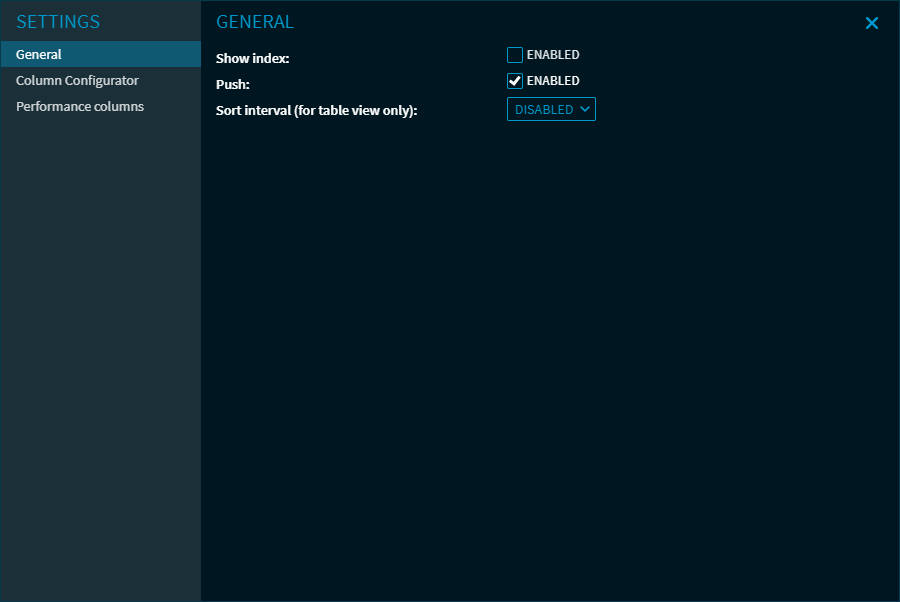
In the "Settings" dialogue window, you can first select the area on the left side for which you want to configure your settings:
"General" area
In the "General" area, you can make the following settings:
|
Field |
Description |
|---|---|
|
Show index |
Enable this setting to also display the index in the widget. |
|
Push |
Here, you can use the "enabled" checkbox to enable or disable the push data feed. |
|
Sort interval (only for table views) |
If necessary, select the time interval for updating the table sorting in the widget here. The following periods are available:
|
“Column configurator" area
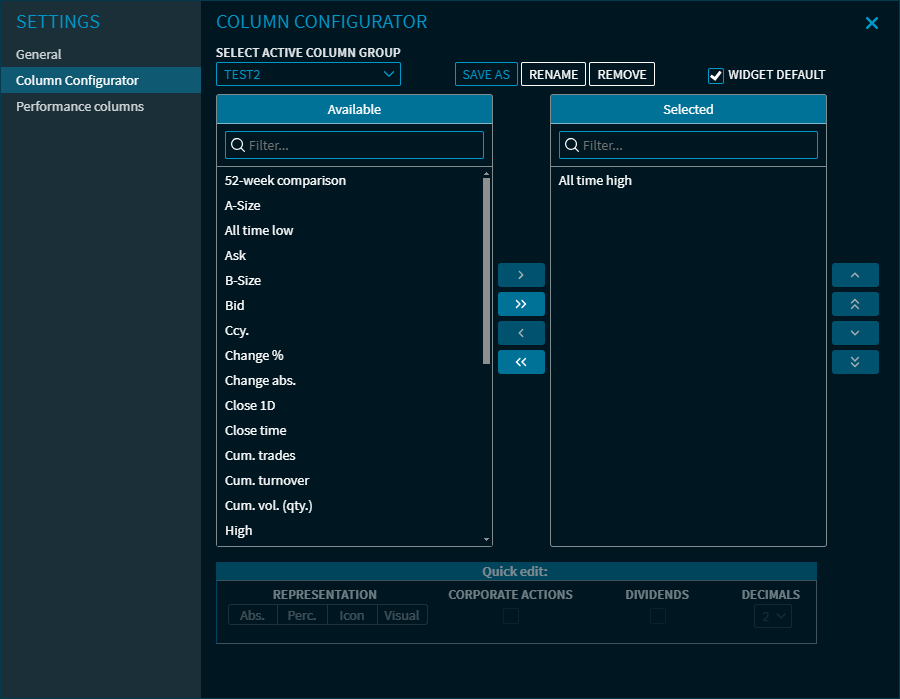
In the "column configurator" area, select the table columns you want to display in the widget. Hide in your individual the less important columns.
See also Show and hide columns of the widgets via the settings and Column configurator.
Settings in the "Portfolio" widget describes how to quickly configure default columns with performance values.
“Performance columns" area
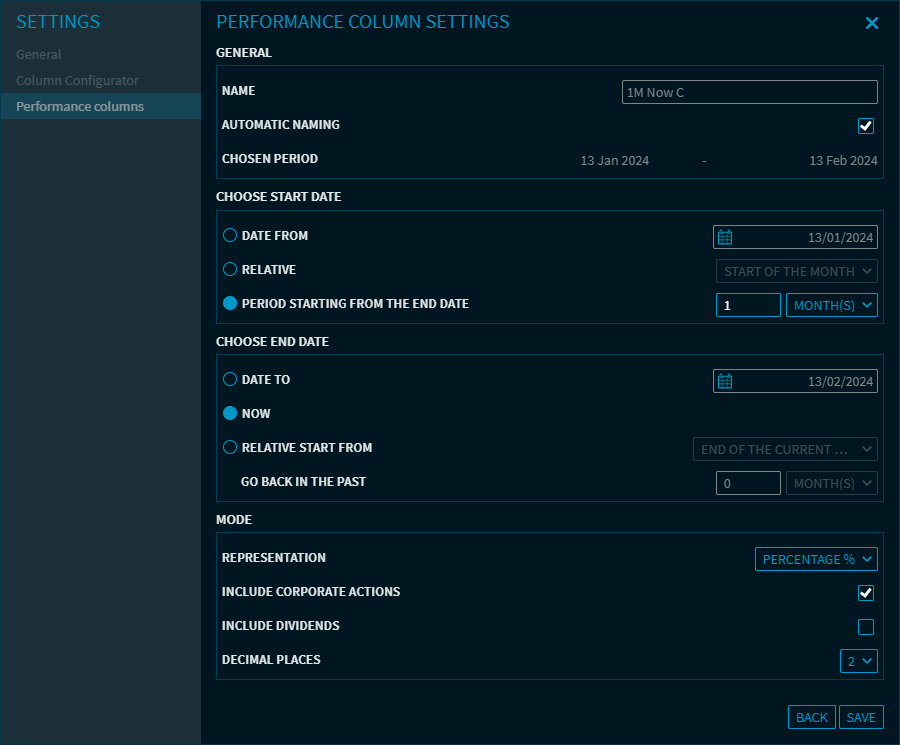
All details about showing performance columns are described in Settings in the "Portfolio" widget.
Settings for "Chart Gallery" view
In the "Chart Gallery" area, you can make the following settings:
|
Field |
Description |
|---|---|
|
Push |
Here, you can use the "enabled" checkbox to enable or disable the push data feed. |
|
Show details |
Select this checkbox to display more details in the individual charts of the Chart Gallery. The following data is shown:
|
|
Start date |
Use the integrated calendar to specify the start date. |
|
End date |
Use the integrated calendar to specify the corresponding end date. |
For more information about working with widgets, see Commands in the widget menu.