

Use the "Widget settings" icon to open the "Settings" dialogue window for configuring the widget.
Alternatively, you can use the "Settings" command in the widget menu.
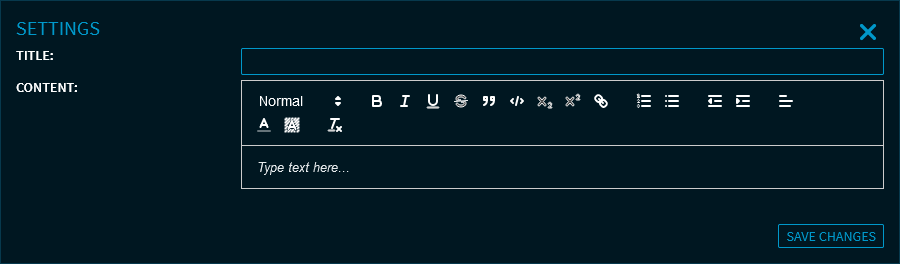
Enter the corresponding widget title in the "Settings" dialogue window and the text to be displayed in the "Content" area.
Here, you can also paste text from the Clipboard, by using the key combination <CTRL>+<V>.
By using the icons above the text field, you can format the text as follows:
|
Icon/function |
Description |
|---|---|
|
Text format 
|
Select the text format in the upper left of the toolbar. Use these to structure texts cleanly. The following variants are available:
|

|
Make the text currently selected bold. |

|
Italicise the text currently selected. |

|
Underline the text currently selected. |

|
Cross the text out currently selected. |

|
Format the currently selected paragraph as blockquote. |

|
Format the currently selected paragraph as codeblock. |

|
Format the currently selected text as subscript. |

|
Format the currently selected text as superscript. |

|
Create a hyperlink. |

|
Format the currently selected paragraph as numbered list. |

|
Format the currently selected text as bulleted list. |

|
Increase the indent, that is, move the currently selected paragraph closer to the margin. |

|
Decrease the indent, that is, move the currently selected paragraph further away from the margin. |

|
Change the text alignment for the paragraph currently selected. The following formats are available:
|

|
Change the font colour for the text currently selected. |

|
Change the background colour for the text currently selected. |

|
Clear the format of the text currently selected. |
After entering your text, click the "Save changes" button.
For more information about the widget settings, see Commands in the widget menu.