
Analytics widgets (WTK): Sankey Chart (New – IM-14551)
This release introduces another analytics widget, the “Sankey Chart” widget.
The widget provides a clear, visual overview of how total revenue is broken down into various components such as cost of goods sold, gross profit, and many other levels.
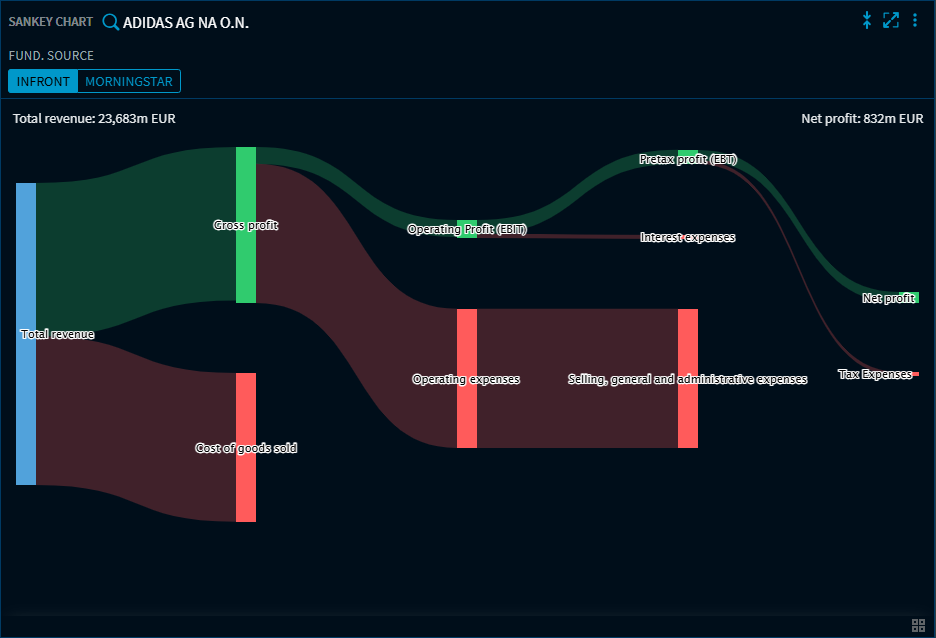
You can switch between Infront and Morningstar data using the buttons above the chart.
A Sankey chart (named after Matthew Henry Phineas Riall Sankey) is a graphical representation of quantity flows. Unlike a flow chart, the values are represented by arrows whose thickness is proportional to the quantity. (Wikipedia)
Chart, Chart Analysis: Convert widget (Improvement – IM-14499)
It is now possible to convert an existing “Chart” widget into a “Chart Analysis” widget. This allows you to use the advanced analysis functions of Chart Analysis and apply the existing settings.
You can find the corresponding command in the widget menu:
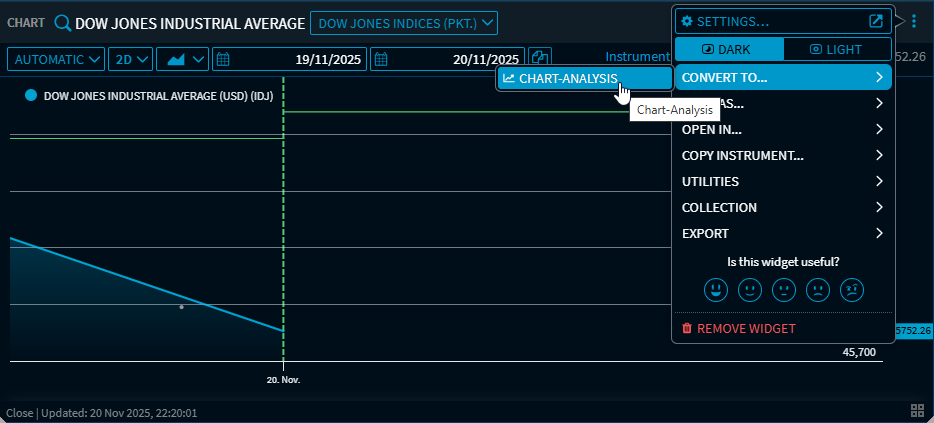
Chart Analysis: Virtual points hidden (Improvement – IM-14542)
In rare cases, the price history showed that individual candles were displayed twice in the candlestick chart, for example, and were then also transferred to a CSV export of this time series. For example, the Friday price was also displayed on the following Sunday.
These virtual values are sometimes actually needed in the background to calculate performance correctly, but should not be visible and will therefore be hidden in future.
Corporate Actions: Dividends from certificates (Improvement – IM-14599)
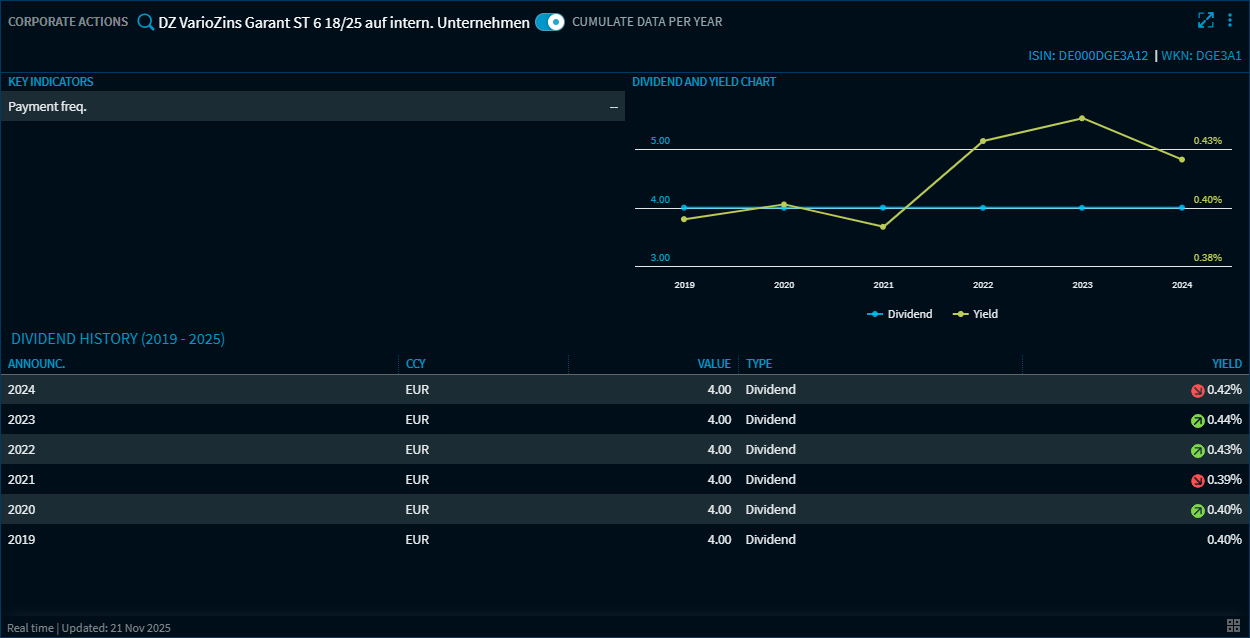
The “Corporate Actions”, “Chart Analysis” and “Chart” widgets now also support dividends from corresponding certificates.
Example: VarioZins Garant ST 6 18/25 (ISIN: DGE3A1)
Watchlist, Portfolio: Displaying long texts in columns (Improvement – IM-14570)
The display of fields or table cells with long names or values has been optimised.
Display in widget
The widgets in Infront Investment Manager now only display the first few characters, with three dots at the end indicating that the text has been truncated. The familiar icon is also displayed.
Point to the icon in the table to display the full text in a pop-up window. In this window, you can now also copy the text using the “Copy text to clipboard” icon.
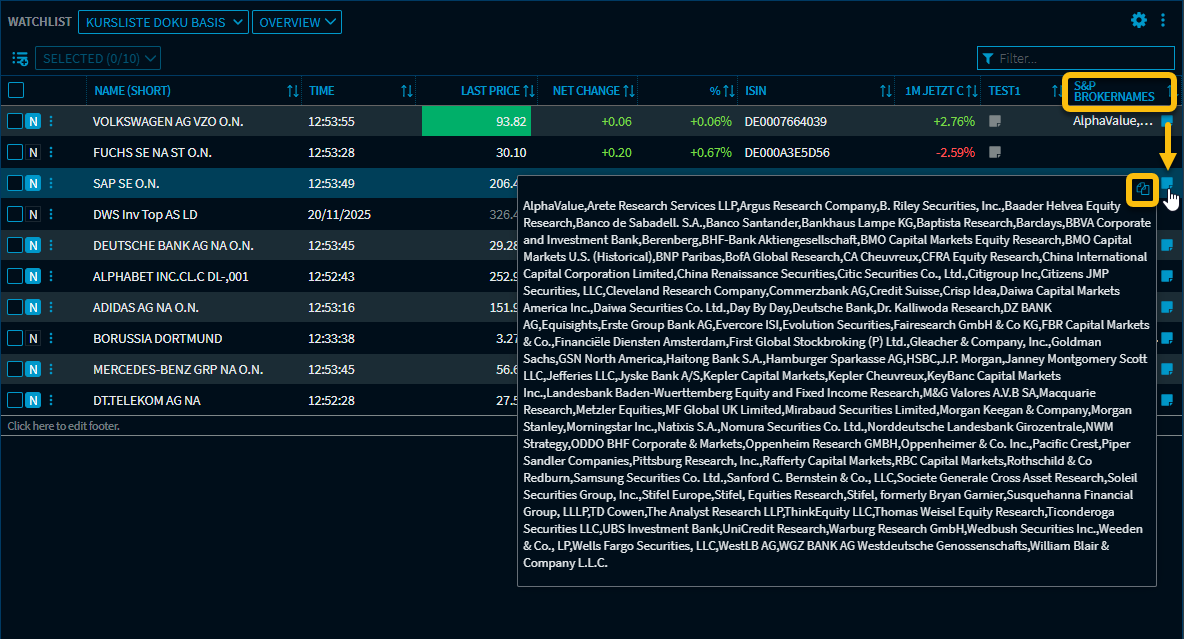
In this example image, the column “S&P Broker Names” was added to a price list using drag and drop.
Affected widgets and fields
In addition to the portfolio and watchlist overview, you will also find this optimisation in other relevant widgets such as “Index Composition” or “Arbitrage”.
Affected fields include, for example:
-
Investment horizon (Field ID 2852)
-
Client objective (Field ID 2851)
-
Loss bearing ability (Field ID 2856)
-
Client category (Field ID 2850)
-
MiFID tick size (Field ID 103060)
-
S&P Broker Names (Field ID 103164)
-
Distribution strategy (Field ID 2858)
In addition, the MEMO, TEXT and ICON columns were also adjusted accordingly.
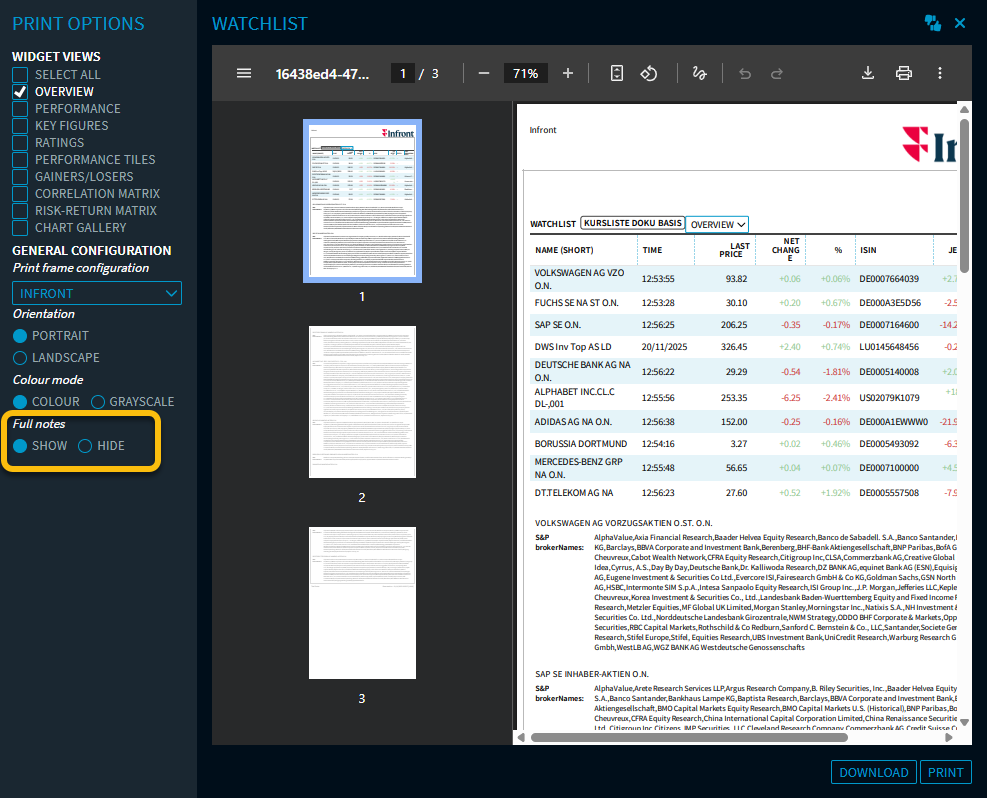
Display in print preview
When printing the widget, long texts are displayed as a text block after the table. This display can also be hidden on the left-hand side using the “Full notes” setting.
Column configuration (Improvement – IM-14472)
The “Auto” setting for handling decimal places in the “Quick edit” section of the column configurator now also automatically truncates very large numbers in columns in a meaningful way.
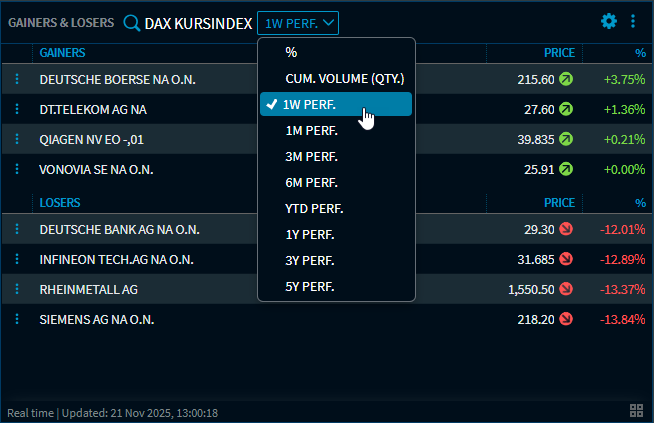
Gainers & Losers: Period ‘1 week’ added (Improvement – IM-14574)
In the “Gainers & Losers” widget, the “1 week performance” period has been added to the selection list for performance periods.
Widget Gallery: Widget Gallery revised (Improvement – IM-14268)
The widget gallery and its search function have been optimised.
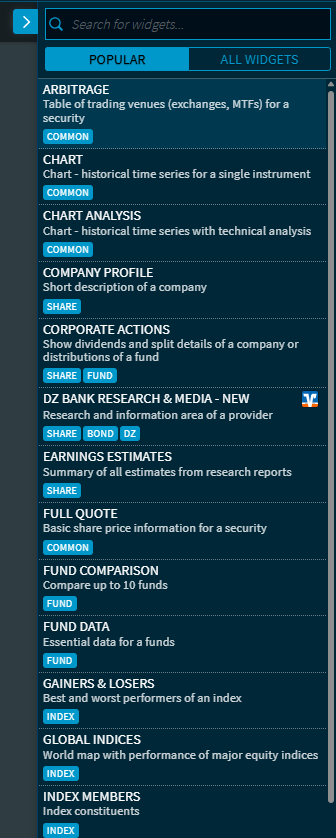
By default, the most frequently used widgets are displayed in the “Popular” section. You can switch to the complete list of widgets by clicking on the “All Widgets” button. The search function, which is still located at the top of the widget gallery, searches all widgets. It is also possible to filter by assigned categories. To do this, simply click on the respective category (e.g. “Share”, “Common”, “Bond”, “Portfolio”, etc.).
In addition, the “Open as” menu in the widget menus has also been revised in the same way, so that it now uses the same logic as in the widget gallery.