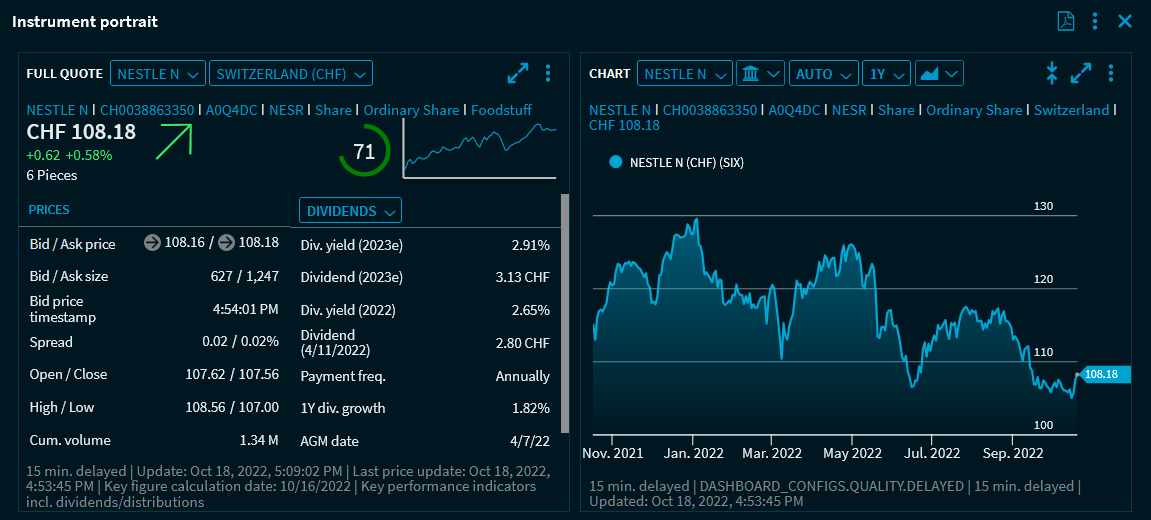
To create a new dashboard template for equities:
-
Open the Dashboard Explorer in the upper left corner of the dashboard bar.
-
Select "New dashboard" from the menu.
-
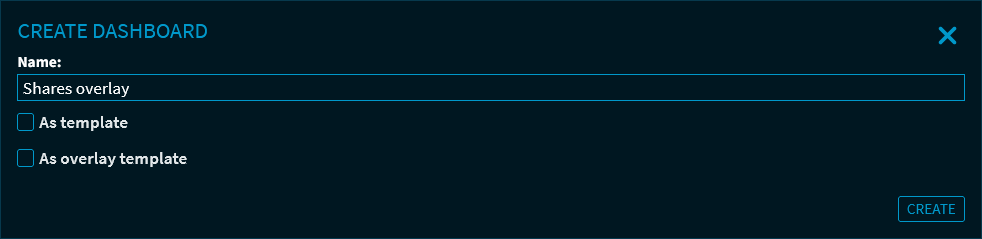
In the "Create dashboard" dialogue window that appears, enter a descriptive name in the "Name" input field.
-
Select the "As short portrait template" option in the "Create dashboard" dialogue window.
-
Then click the "Create" button.
This opens the new overlay template. -

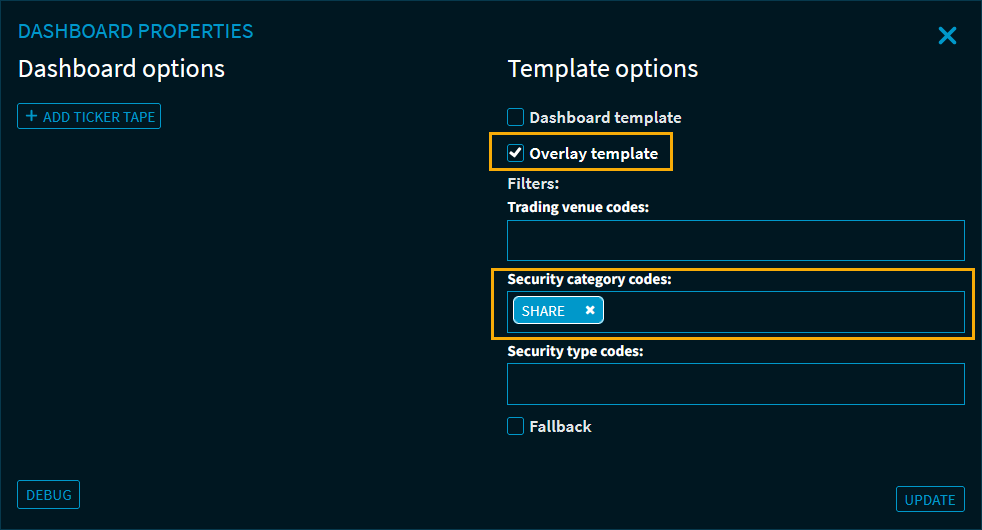
Click the "Properties" icon to open the "Dashboard properties" dialogue window.
-
Now set the relevant template options for the short portrait template in the "Dashboard properties" dialogue window that appears, for example the "Share" security category code.
-
Then click the "Update" button to confirm your settings.
This opens the new (empty) dashboard. -
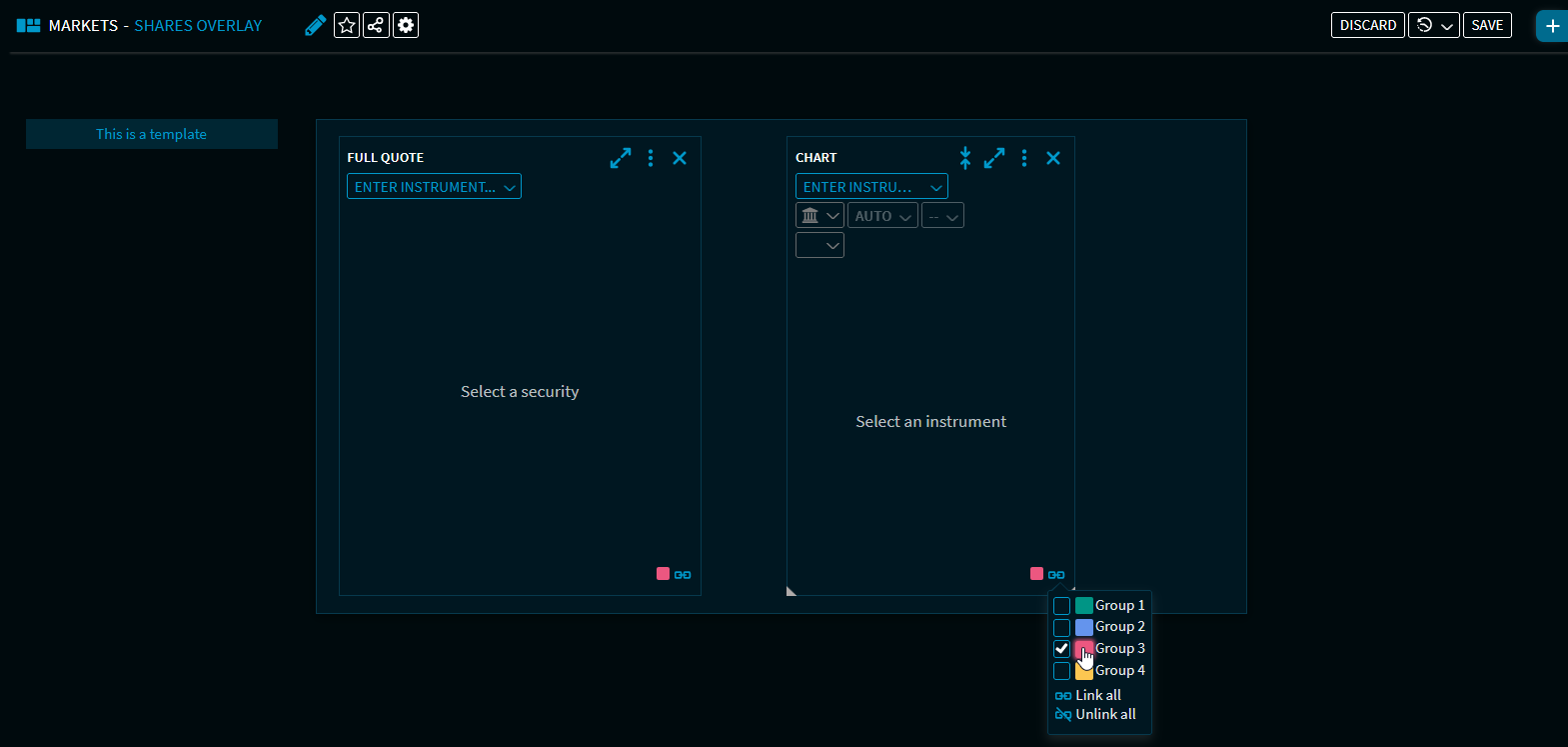
Open the Widget Gallery and place the "Full Quote" and "Chart" widgets on the dashboard.
-
Assign both widgets to the same group.
-
Click the "Save" button to save the dashboard template.
-
Now open the screener and search for shares.
-
Select a hit in the search results.
This opens the selected share as a short portrait in the previously created short portrait template: