
If you opened a PDF instrument profile as described in Instrument profile, you can configure it (partly depending on the underlying widget - before saving or printing. To do this, follow these steps:
-
Specify the relevant settings for the PDF file in the dialogue window that appears.
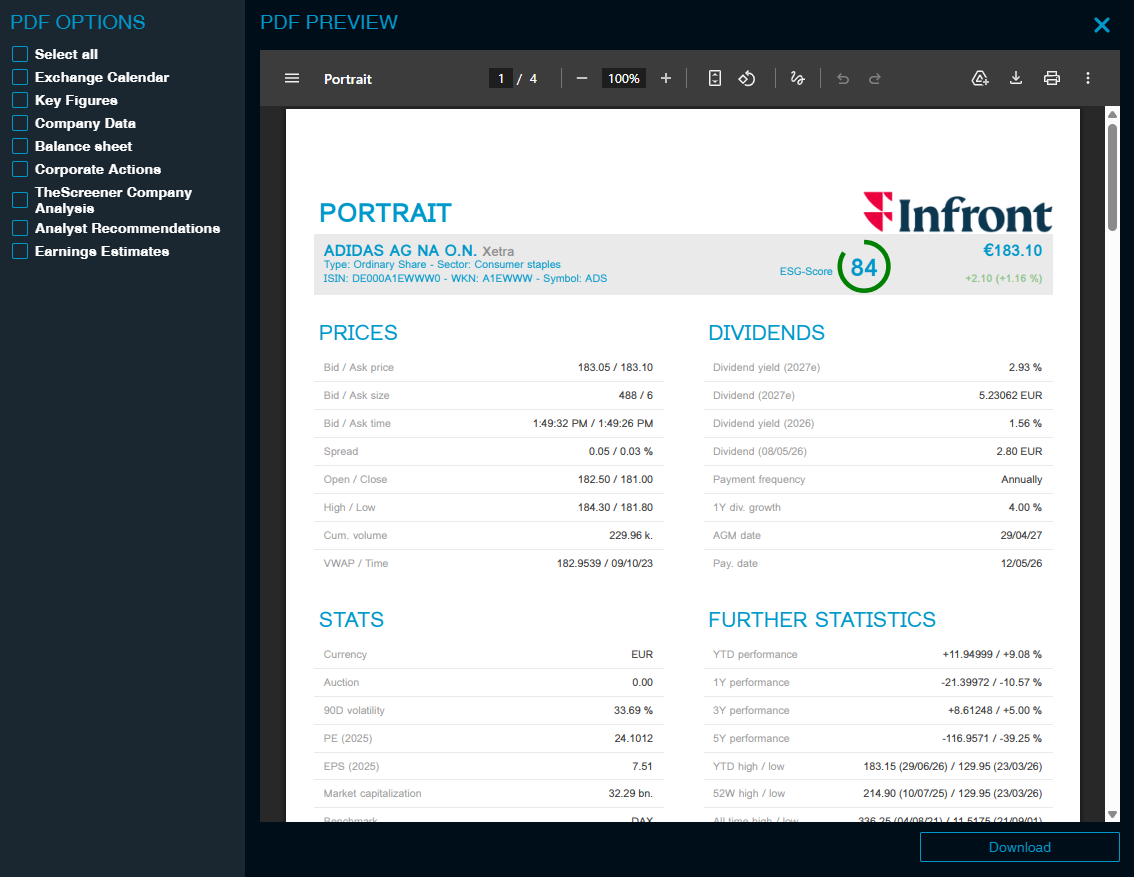
A preview of the PDF file with many other functions is available on the right-hand side.
-
Finally, select the "Download" button.
The PDF file is downloaded.
PDF options
On the left side, you see the PDF options. Here you can add further data to the short portrait. To this end, select the corresponding checkbox. You can find the following functions for shares:
-
Exchange Calendar
-
Stats
-
Company data
-
Financials
-
Corporate actions
-
Companies (theScreener)
-
Analyst Recommendations
-
Earnings estimates
You can enable all available data by selecting the "Select all" checkbox.
PDF preview
On the right side, you see the PDF preview.
You then use the controls in the header to define your PDF settings - details depend on the browser you are using.
For example, Firefox provides the following functions:
|
Element |
Description |
|---|---|
|
Menu icon 
|
Use the menu icon to expand or collapsed the left side of the PDF preview with the thumbnail page display. |
|
Number of pages
|
Here you can see the current page number and the total number of pages. Enter a page number and confirm with <RETURN> to go directly to that page. Alternatively, you can jump to pages using the thumbnail page display on the left. |
|
Zoom
|
Adjust the size of the display here - use the two icons or enter the desired percentage value directly. |
|
Customise on page
|
Click this icon to display the entire page. |
|
Rotate display
|
Click this icon to rotate the display of the pages counter-clockwise step by step. |
|
Download
|
Click this icon to download the short portrait with the current settings. |
|
Print
|
Click this icon to print the short portrait with the current settings. A printer settings dialogue window opens first. |
|
More actions
|
In the menu on the right you will find further functions for the PDF preview, for example, a two-page view or detailed document information. |




The widget-specific settings are saved for the PDF instrument profile.